If you get it for FREE, do not SELL it.

LA Grafica Free Templates

FREE TEMPLATES

Six ready-to-print calendar designs, from classic tide calendars to a modern layout. Most have a space at the top for your own ad. Pick one and download the print-ready PDF.

  • 6 designs
  • Print-ready PDF
  • Ad space on 4 designs
  • Free
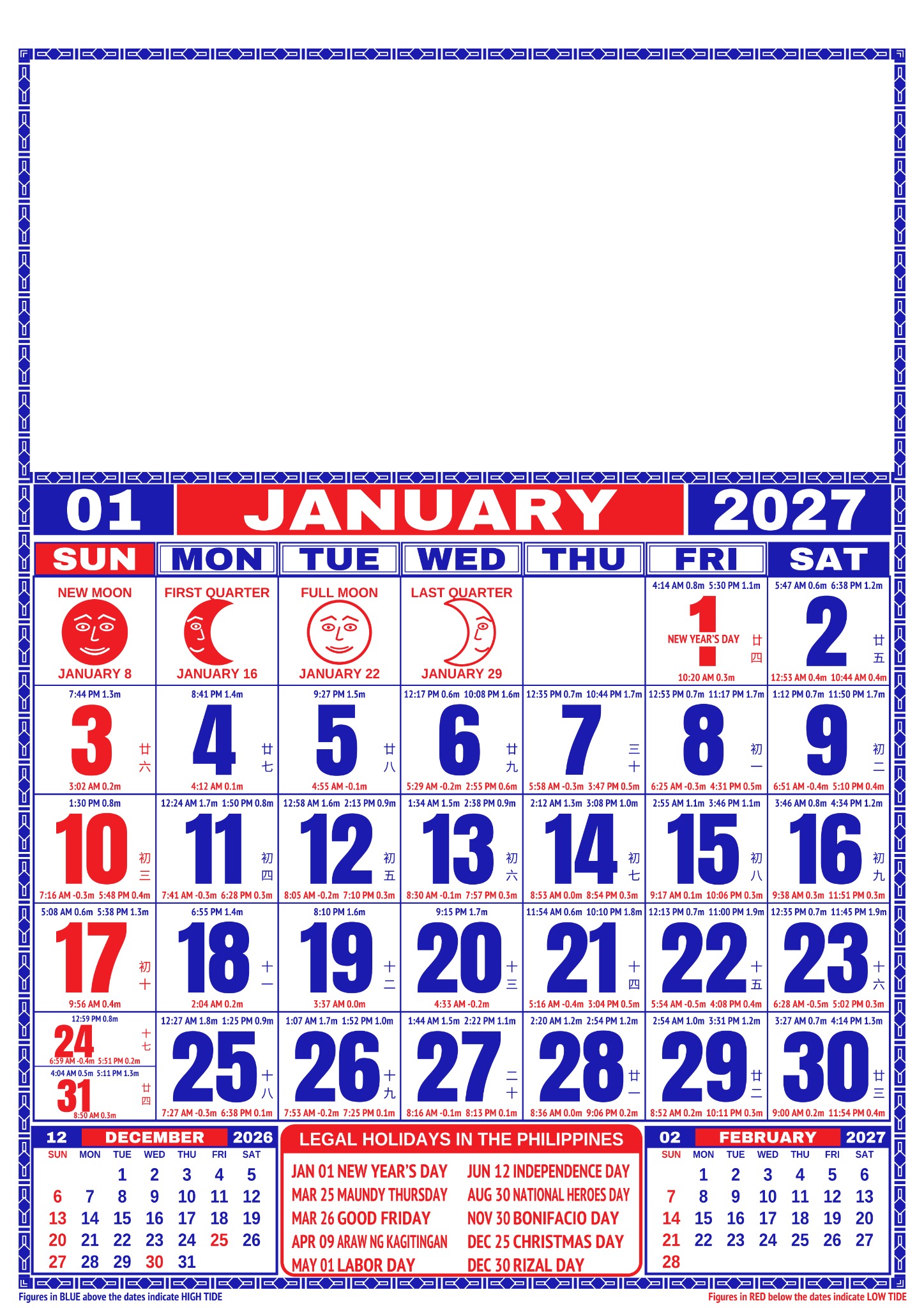
Classic blue and red portrait calendar template with ad space at the top

Choose a template

Select a preview to see it larger. Previews show January; each PDF has every month.

How to add your own ad

Four templates have a blank ad space at the top. Design your ad at the size below, then place it in the space on each month’s page.

Modern with ad space
about 7.2 × 2.9 in
Vintage Spanish
about 7.0 × 2.7 in
Classic with ad space
about 7.6 × 3.6 in
Classic, two months
about 7.8 × 3.9 in
Using Canva
  1. Download the template PDF from this page.
  2. In Canva, choose Create a design, then Import file, and select the PDF. Each month opens as its own page.
  3. Check every page against the original. Canva can swap fonts or shift small details when it imports a PDF.
  4. Open Uploads, add your ad image or logo, and drag it onto the blank ad space on page 1.
  5. Drag a corner handle to resize it until it fills the space. Canva’s guide lines show when it is lined up.
  6. Copy the ad and paste it on the other pages, then drag it into place on each one.
  7. Choose Share, then Download. Set the file type to PDF Print, select all pages and download.
Using Photoshop
  1. Download the template PDF from this page.
  2. In Photoshop, choose File, then Open, and select the PDF. In the Import PDF window pick Pages, select the months you want, set the resolution to 300 pixels/inch and click OK. Each page opens as its own document.
  3. Choose File, then Place Embedded, and select your ad image. Drag its corner handles to fill the blank ad space. Hold Shift to keep the proportions, and press Enter to confirm.
  4. Use View, then Show, then Guides, or the rulers, to line the ad up with the edges of the space.
  5. Repeat for each month. To save time, record the steps as an Action in the Actions panel and run it on the other pages.
  6. Choose File, then Save As, and pick Photoshop PDF for each month. A high-quality JPEG also works for printing.

Design your ad at 300 pixels/inch so it prints sharp, and keep text a little away from the edges of the space. If you send the files to a print shop, ask which color mode and file type they prefer.

How to print without a white border

A border usually appears when the printer shrinks the page to fit its margins.

Print the PDF at actual size
  1. Open the PDF and check the dates.
  2. Choose Print and set the paper size and orientation to match the template.
  3. Turn on Borderless if your printer has it.
  4. Set scaling to Actual size (100%). Do not choose “Fit” or “Shrink to fit”.
Printing at a print shop
  1. Send the PDF as is and ask for 100% scale at the template’s paper size.
  2. Ask for borderless printing, or print on larger paper and trim to size.
  3. Ask for a test sheet first to check the margins.

Most home and shop printers can’t print to the very edge, so a thin white edge (about 0.1–0.25 in) can remain. For a full-edge print, print on larger paper and trim, or ask your print shop for borderless printing.

Buy me a coffee

Scan this QR code to donate.

QR code coming soon